Comprehensive Guide: How to Install IPTV on iPhone & iPad
Ready to stream your favorite live TV channels and content directly on your Apple device? This guide will show you how to easily install IPTV on iPhone and iPad using the popular IPTV Smarters Player Lite app. We’ll walk you through every step, from downloading the app from the App Store to configuring your subscription.
Step 1: Download Smarters Player Lite from the App Store
The first step is to get the official app on your iOS device.
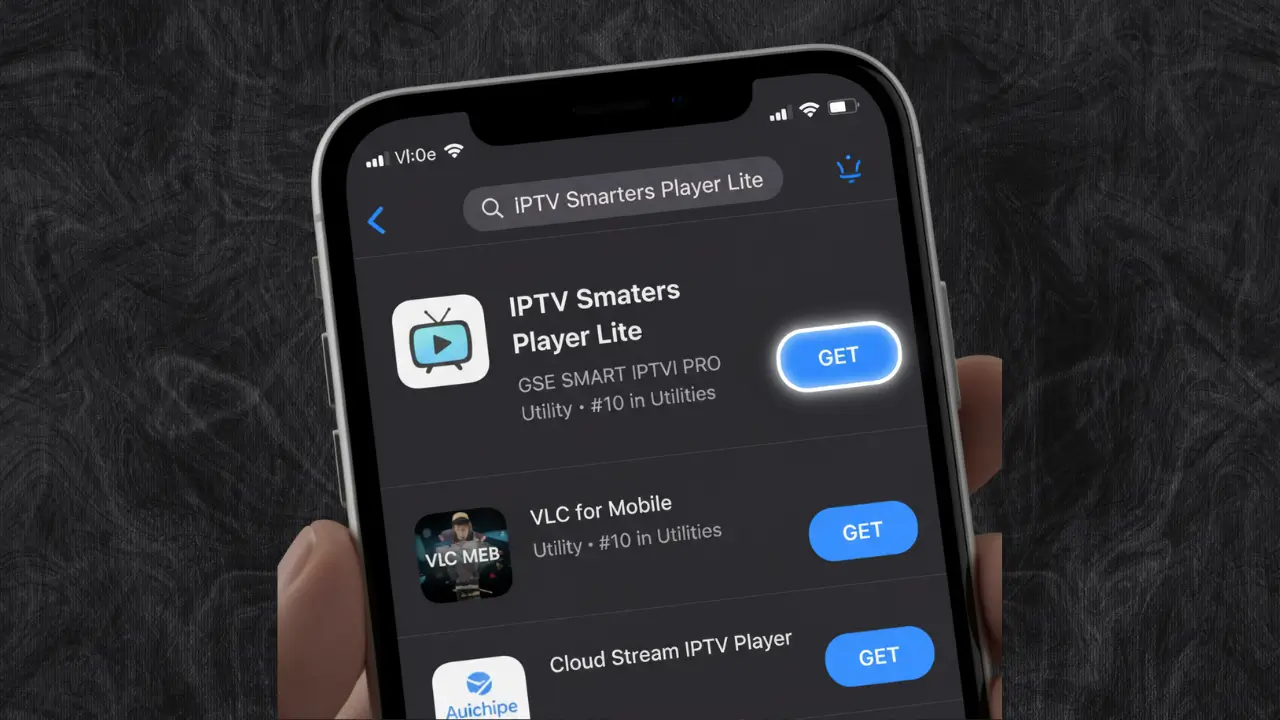
On your iPhone or iPad, open the App Store.
Search for “IPTV Smarters Player Lite.”
Tap on the app and select “Install” to download it to your device.
Step 2: Log In to the Application
Once the app is installed, you’ll need to enter your subscription details to access your content.
Launch the IPTV Smarters Player Lite app.
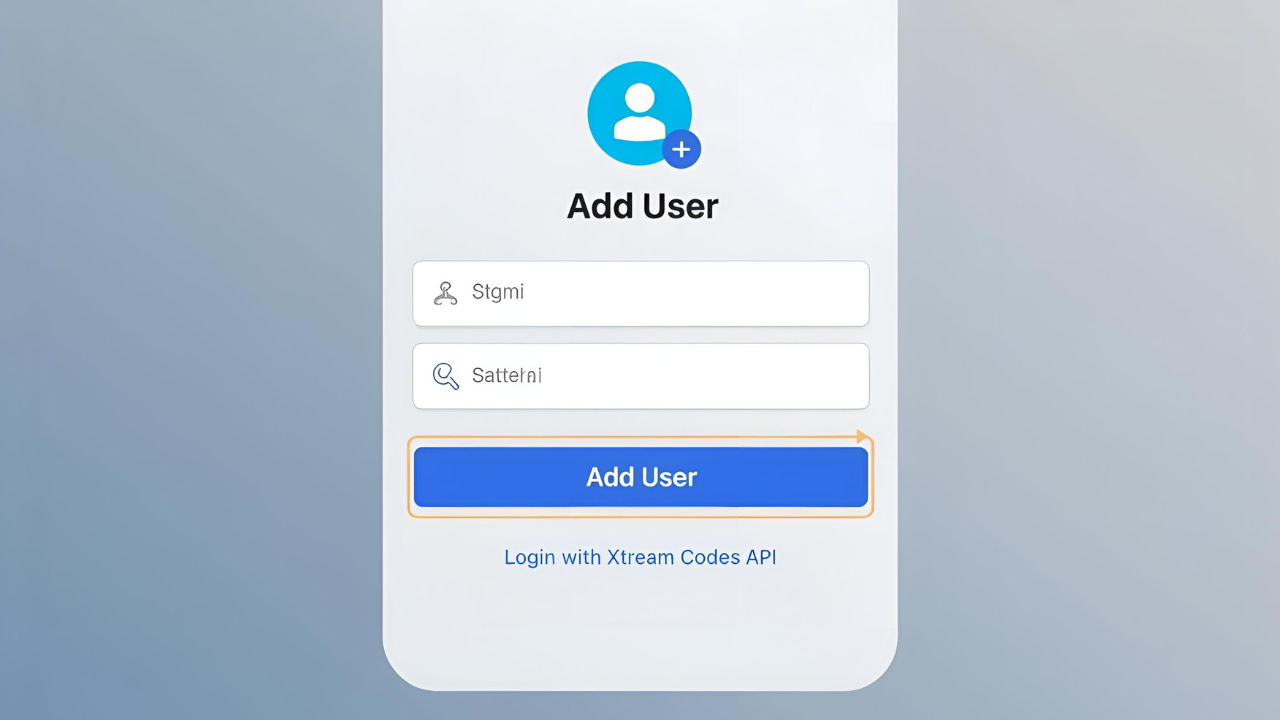
Tap on “ADD USER” to begin the login process.
Fill in the login details that we have provided you after your subscription. This includes your username, password, and the portal URL.
Step 3: Enjoy Your Live TV & Content
After logging in, the app will download your channels and content.
Wait a few moments for the download to complete.
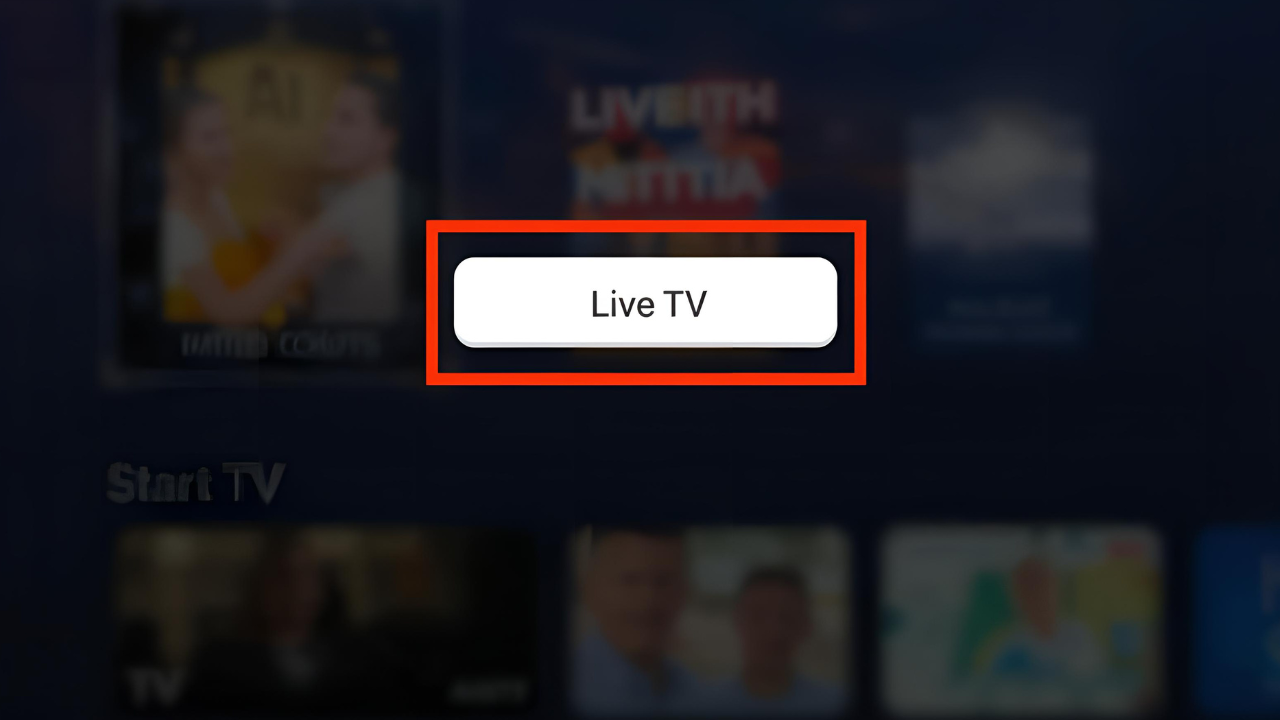
On the main screen, tap the “Live TV” icon to see your channel list.
Select a channel group, then choose a channel to start watching.
To go full screen, simply double-tap the video.
If you want to add an Electronic Program Guide (EPG), simply click on “Install EPG” in the app. No need to add a separate URL.
Note: The macOS (Mac Computer) Method
If you’re looking to set up IPTV on your Mac computer, you can download the dedicated IPTV Smarters app from their official website. You can find the download URL here: https://www.iptvsmarters.com/download?download=mac
Troubleshooting & Support
If you have any issues during installation or setup, please take a photo of your MAC address and device key with your phone and send it to our team

 Skip to content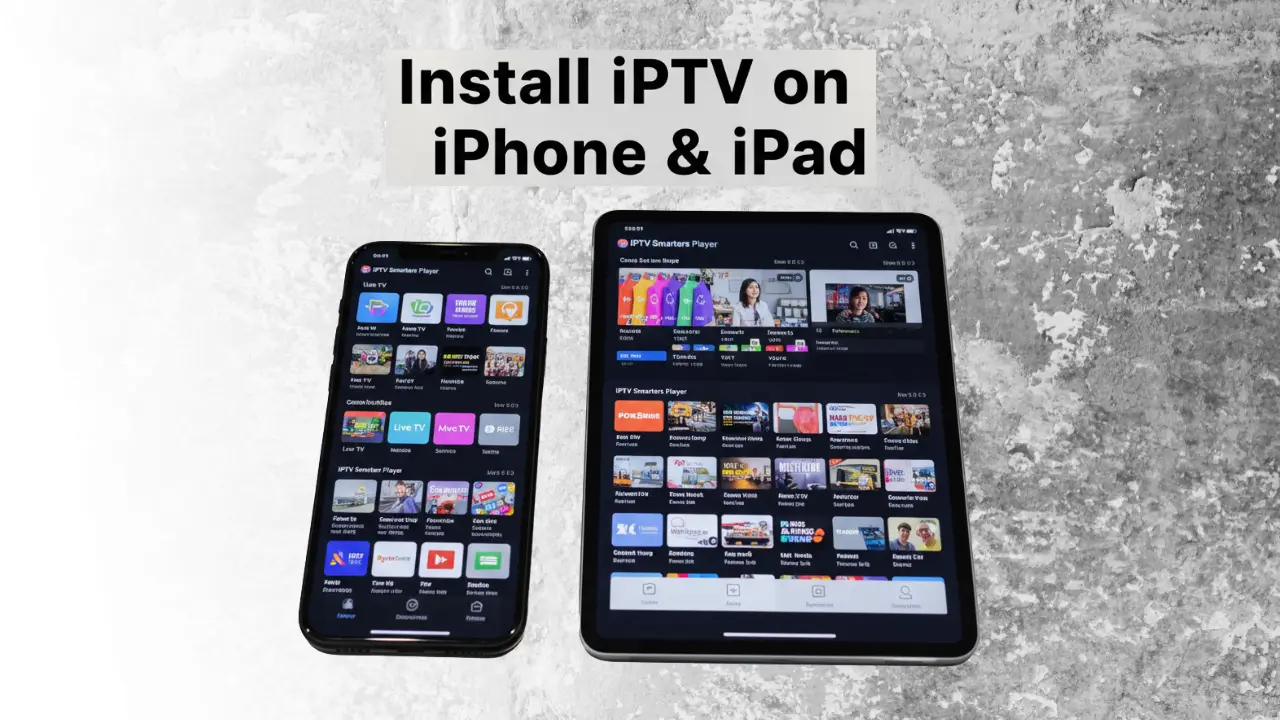
 Optimized by Seraphinite Accelerator